Lini is the AI assistant built into DiliTrust.
In Matter Management, Lini works as a co-pilot for your legal matters. It can:
- find and read your matters, tasks, documents, invoices and provisions,
- spot risks across all your matters,
- create files,
- prepare changes for you.
Nothing changes until you confirm.
In this article, you will learn:
- how Lini works in Matter Management,
- how to open it and ask your first question,
- what it can do in each area,
- how to chain requests into complete workflows,
- which limits to keep in mind.
Looking for concrete examples for your role? See MM – Ask Lini: Use Cases & Prompts by Role.
⭐ Lini at a glance
Here is what Lini can do for you. Each item includes a request you can try.
- Weekly risk briefing: see what changed across all your matters, with alerts on missed dates, spend and provisions.
- Try: “What changed across all matters in the last 7 days, and what needs my attention?”
- Never miss a deadline: Lini reads a court decision and creates one task per deadline. It also lists upcoming and overdue deadlines.
- Try: “Read the latest order and create a task for each deadline.”
- Make the most of documents: summaries that point to the source passages, timelines built from case documents, version comparisons, and lists of obligations.
- Try: “Build a timeline of the facts from the documents in this matter.”
- Control spend and provisions: spend by law firm, matters over budget, provisions not updated, and quarterly closing files.
- Try: “Which provisions have not been updated in 90 days?”
- Create a matter from a letter: Lini reads a formal notice, a term sheet or an intake request. It then prepares the matter, the contacts and the tasks.
- Try: “Create a matter from this formal notice.”
- Triage intake requests: see unassigned requests, assign them, turn them into matters and balance the workload.
- Try: “Show unassigned requests, oldest first.”
- Ready-to-present reporting: board presentations, closing memos, one-page summaries and plain-language status updates.
- Try: “Create a PowerPoint presentation on our ongoing litigation for the board.”
- Legal research: legislation, case law and legal commentary in more than 230 jurisdictions, with verified citations.
- Try: “Under French law, is a 2-year non-compete clause enforceable?”
⚡ How Lini works
The five types of actions
- Search and view. Lini searches and reads matters, tasks, documents, invoices, provisions, contacts and intake requests.
- Try: “Show me all ongoing litigation.”
- Analyze. Lini checks your matters for risks: budget overruns, provisions not updated, inactive matters and deadlines.
- Try: “Which matters have had no activity for 60 days?”
- Create files. Lini creates Word, PDF, Excel or PowerPoint files. They are saved in the “AI Artifact” folder of a matter.
- Try: “Create a PowerPoint presentation on the progress of this matter.”
- Legal research. Lini searches published case law, legislation and legal commentary from more than 230 jurisdictions.
- Try: “Under French law, is a 2-year non-compete clause enforceable?”
- Change data. Lini creates, modifies or deletes records: matters, tasks, contacts, provisions and invoices.
- Try: “Create a task to file the submissions before November 15.”
How changes are validated
Lini never changes anything on its own. Here is what happens:
- You ask for a change.
- Lini prepares the change and lists it for you to review.
- You confirm in your next message.
- Only then does Lini carry out the change.
Good to know:
- Some requests need several changes. For example: a matter, then its tasks, then a provision. Lini prepares them as one set, in the right order.
- Deletions are permanent. They always require your explicit confirmation.
Where files are saved
- Each file is attached to a matter.
- It is saved in that matter’s “AI Artifact” folder.
- You need permission to add documents to that matter.
Access rights
Lini only sees and changes what your own access rights allow.
☝ Opening and using Lini in Matter Management
This section shows you how to open Lini, choose which matters it looks at, read its answers and give feedback.
Before you start
- Lini must be enabled for your organization. Don’t see the LINI option in Matter Management? Contact your DiliTrust administrator.
- You need a contributor or legal manager role in Matter Management.
- The more data you have in the system (matters, documents, requests), the more useful Lini’s answers will be.
Opening Lini
- Log in to DiliTrust.
- Go to Matter Management.
- Click the LINI icon or menu entry.
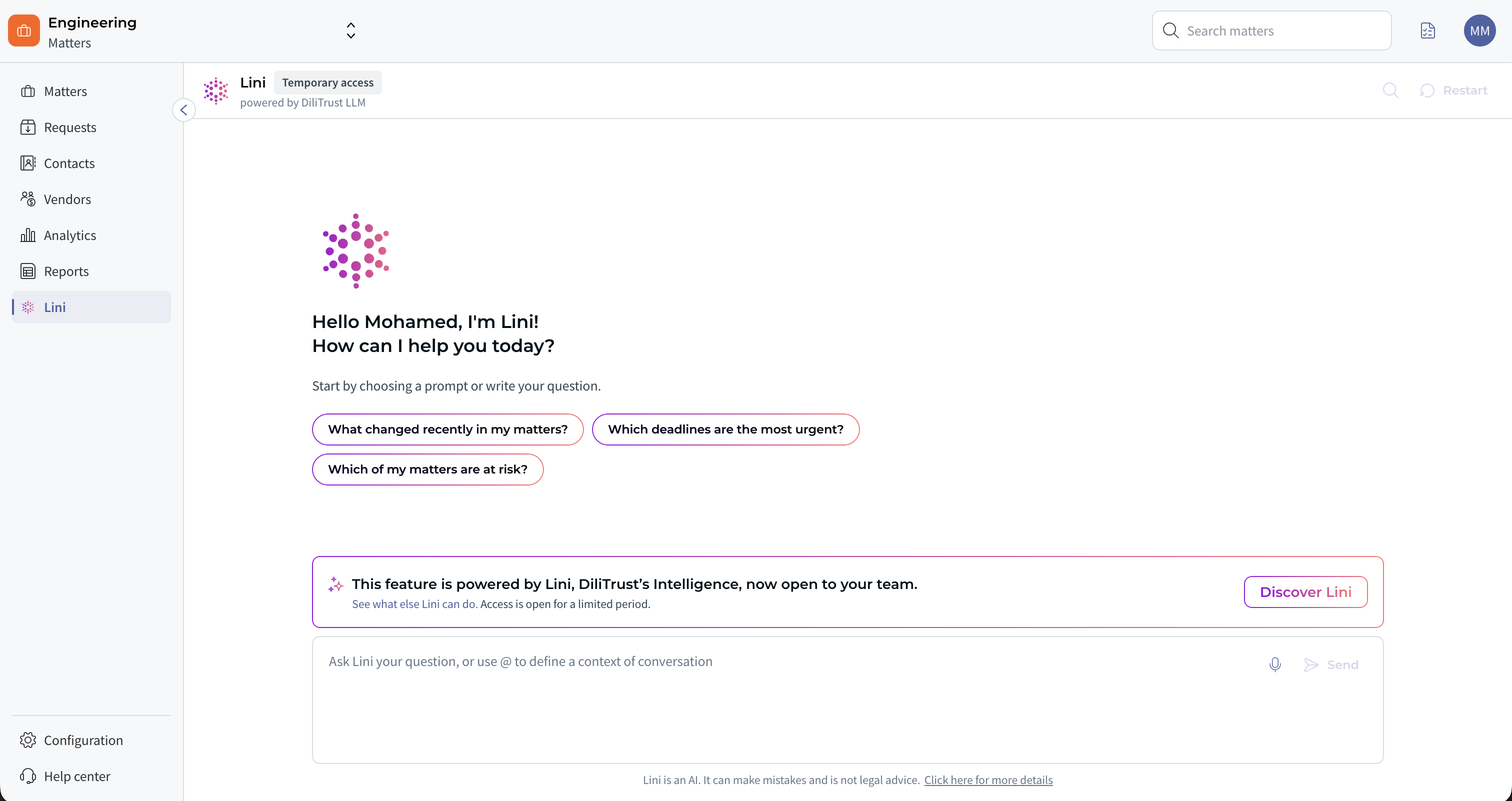
You can use Lini in two ways:
- Full screen: a dedicated workspace.
- Pop-over: a small window that opens on top of any matter page.
Asking your first question
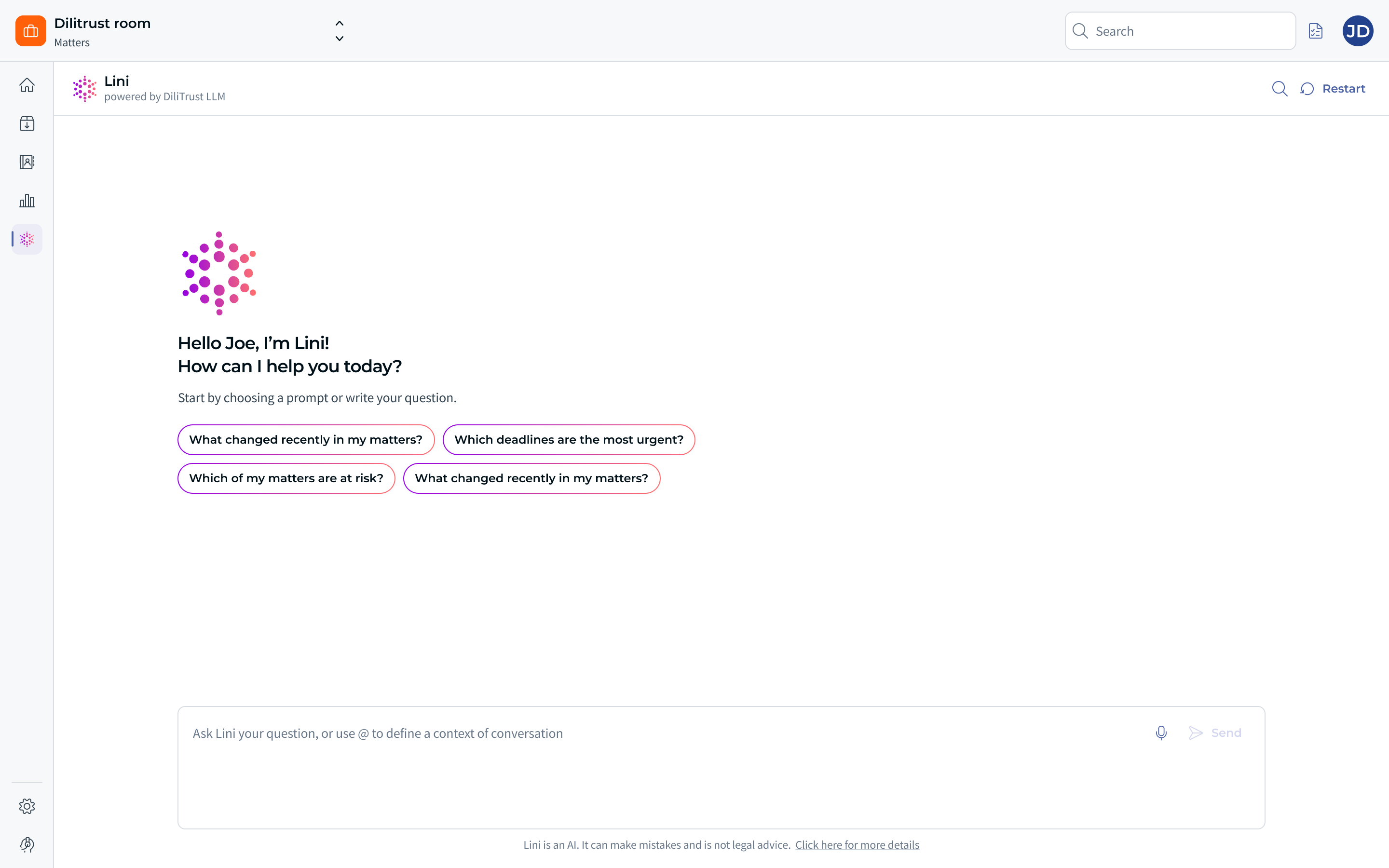
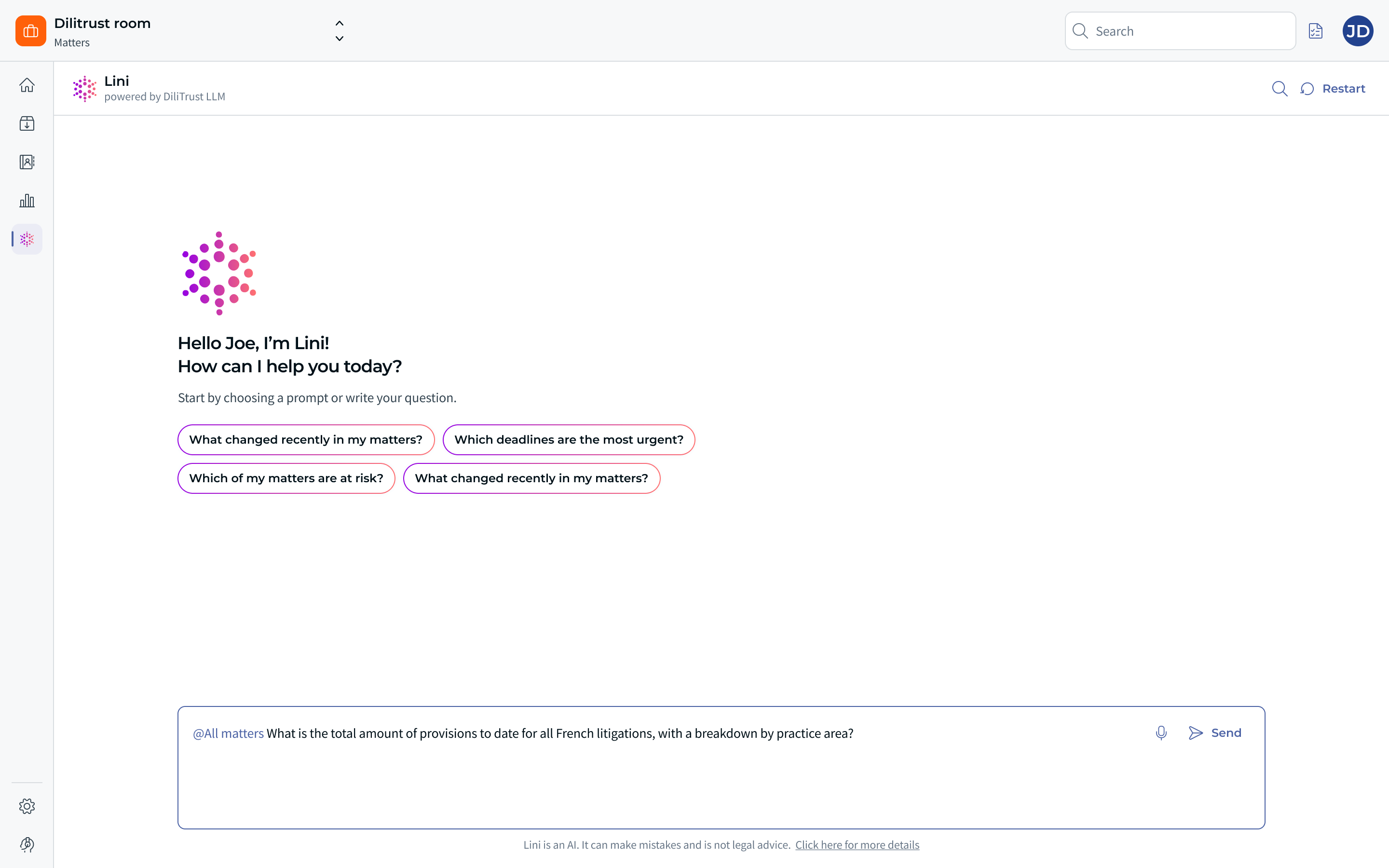
- Open Lini. The start screen invites you to start by choosing a prompt or writing your question.
- Pick one of the suggested prompts, or type your own question in the input field. The suggested prompts are:
- “What changed recently in my matters?”
- “Which deadlines are the most urgent?”
- “Which of my matters are at risk?”
- Click Send. The Send button stays inactive until you type something or pick a prompt.
Want a fresh start? Click Restart in the header. This clears the exchange and begins a new conversation.
Choosing which matters Lini looks at
By default, Lini answers based on the matters in your current context:
- the matters you filtered in the list,
- or your own matters, if you did not filter the list.
To focus on specific matters:
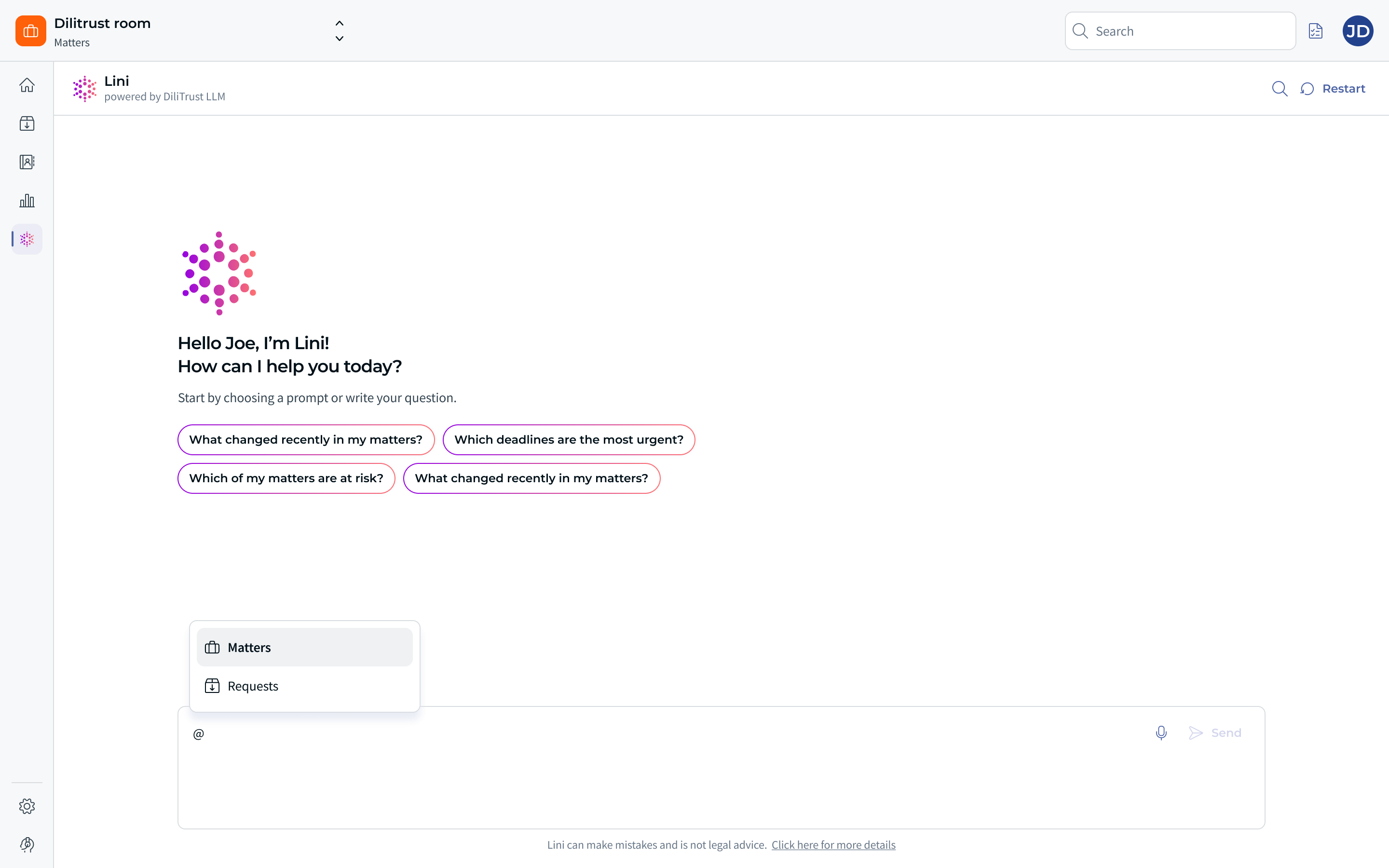
- Type @ in the input field. The field reminds you of this: “Ask Lini your question, or use @ to define a context of conversation”.
- Select the matter or matters you want.
Lini then answers about those matters only. It ignores all other matters.
Reading the answer
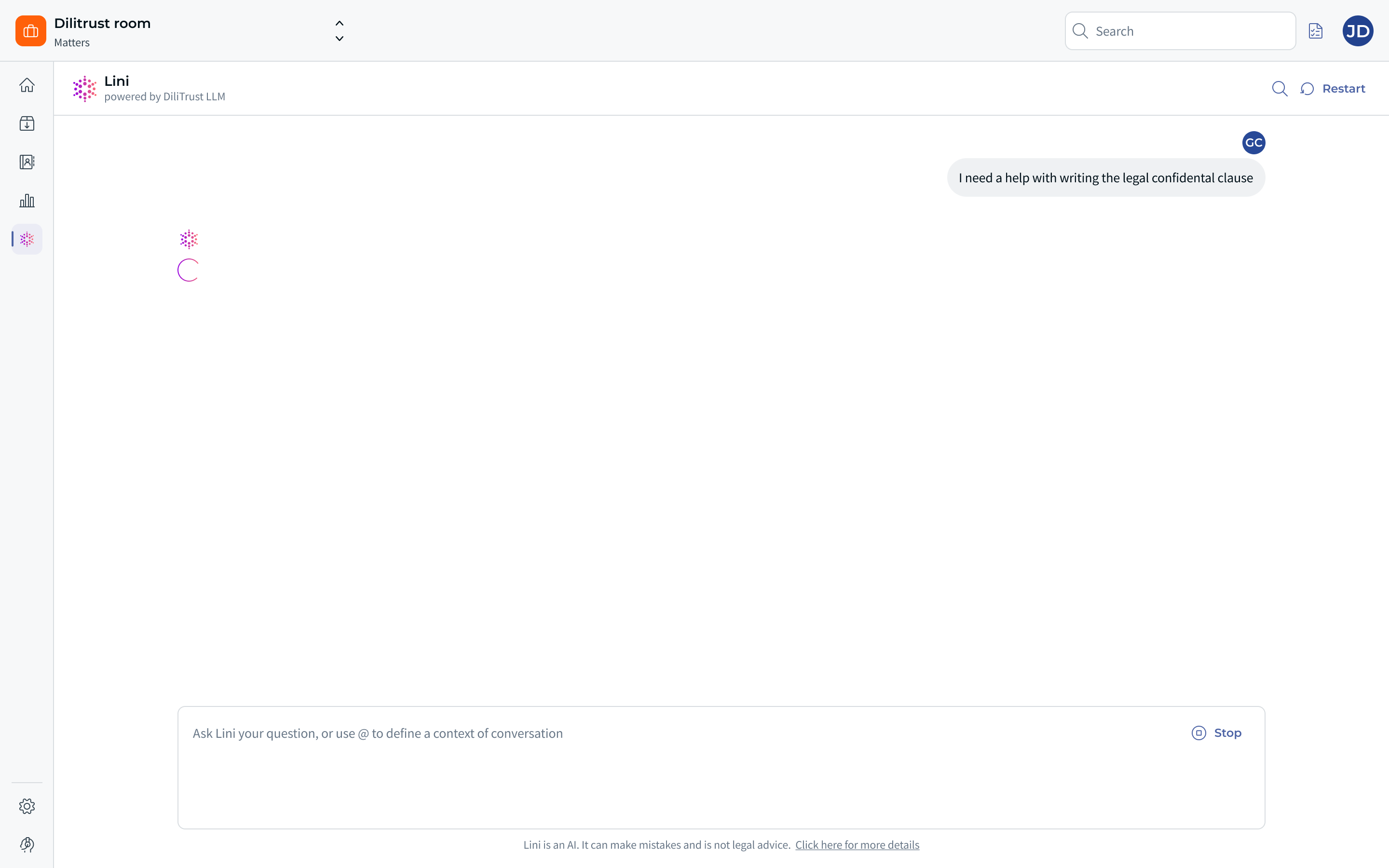
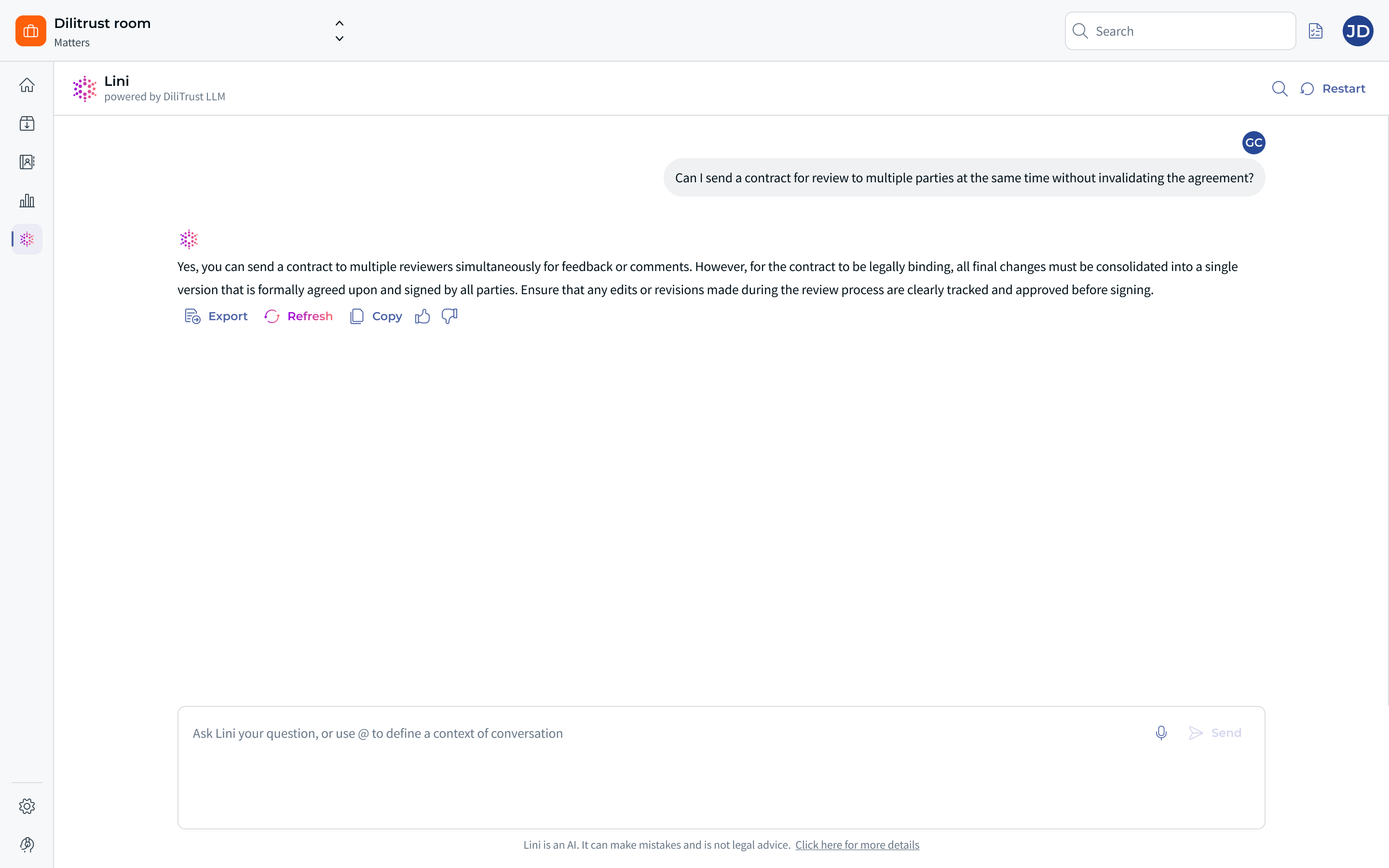
- Lini first shows that it is searching your data.
- The answer then appears step by step.
- Answers can include tables, for figures or lists.
- A reminder appears under the conversation: Lini is an AI. It can make mistakes. Its answers are not legal advice.
Giving feedback or asking for a better answer
- Under each answer, mark it as helpful or not helpful.
- You can rate each answer only once. Your rating cannot be changed afterwards.
- Answer not quite right? Ask Lini to rewrite it. The new answer replaces the previous one.
Using Lini in full screen
Full screen is best for longer analysis sessions.
- Open Lini in full screen.
- Type your question in plain language. For example:
- “What are my highest-priority open matters?”
- “Summarize the key points of this contract document.”
- “Find matters similar to the ACME supplier dispute from 2023.”
- Review Lini’s answer and act on it directly from the full-screen workspace.
Using Lini in the pop-over
The pop-over is best for quick questions while you work on a matter.
- Open a matter.
- Click the LINI icon. The pop-over opens.
- Ask a question about this matter or its documents.
- Lini answers in context. You don’t need to leave the matter page.
⚓ How Lini answers common questions
This section shows how Lini handles the most common requests. It also explains which data Lini relies on.
Seeing which matters need your attention
Ask: “What matters need my attention today?”
Lini lists your matters from most to least urgent, one block per matter. Each block tells you:
- why the matter is flagged,
- which action you could take.
Matters are grouped into simple urgency levels, such as urgent, at risk, on track and dormant (no recent activity). You see at a glance where to start.
What Lini uses to judge urgency
- Deadlines in Matter Details. These are date fields for key milestones, standard or custom. Examples: next hearing date, filing deadline, appeal deadline, response deadline, contract expiry date, statute of limitations date, next review date.
- Timeline tables. These are custom tables your organization uses to track procedural steps or key dates. Examples: procedure timeline, key dates table, hearings log, contract milestones.
- Activity. Lini checks for recent activity in the activity feed, or the lack of it. It also counts the days since the matter was last updated or created.
- Matter information. Lini uses the status and the priority. It uses a risk level only if your matter type has a dedicated risk field. Without one, Lini relies on priority, date fields and activity.
- Ownership. If you don’t specify anything, Lini looks at the matters you own.
Other questions that work well
- “Which matters have an upcoming deadline in the next 2 weeks?”
- Lini lists each matter with its date. It also tells you where the date comes from: which field or timeline entry.
- “Which matters have had no activity recently?”
- Lini shows how long each matter has been inactive. It flags inactivity as a risk when a deadline is close.
Special cases
- Nothing needs attention? Lini tells you your matters look on track: no overdue deadlines and no stalled cases.
- No date fields filled in? Lini uses activity data only, and says so. You know the ranking is based on recent activity, not deadlines.
- Lots of upcoming deadlines? Lini shows the most urgent ones first. It then invites you to narrow the scope.
Getting a status update on several matters
Ask: “Give me a status update on my 2 most active matters.”
Lini writes a short Quickview for each matter. A Quickview is a brief status summary. The Quickviews appear one after the other in the conversation, separated by a line.
Each Quickview contains:
- the matter ID and name,
- a two-line summary of the current situation,
- Recent Developments: the key events that happened,
- Next Steps: the upcoming actions or deadlines.
Good to know about Quickviews
- “Recent” means since the last saved Quickview. If there is none, it means the last two months.
- Lini builds each Quickview from the matter description, status, activity, document names, detail fields, tasks and last saved Quickview.
- Matters appear most recently updated first, unless you ask for another order.
- Lini answers in the language of your question. Ask in English, get English. Ask in French, get French.
- The tone is short and executive. Each Quickview is shorter than one created inside a single matter.
- Does the matter already have a saved Quickview? Lini uses it as background. It still creates an up-to-date version from the current data.
- Not enough information in a matter? Lini tells you it cannot create a Quickview for it. It does not guess.
- Lini handles up to 10 matters per request. If there are more, it tells you and takes the 10 most recently updated.
Sorting through a long list of documents
When a matter has many documents, ask Lini which ones really matter. Lini picks the best format for your question:
- Grouped by topic (default)
- For general questions, such as “What are the most important documents in this matter?”
- Lini groups documents by subject, for example legal strategy and risk, financial exposure, evidence or correspondence.
- It tells you which one to read first.
- By purpose and importance
- For questions about a specific event or decision, such as “Which documents should I read before the hearing?”
- Lini ranks them in this order: must read now, important context, background, then purely administrative.
- Timeline view
- For a chronological view, such as “Show me the document history for this matter”.
- Lini lists documents by date and flags the most recent one.
What Lini reads to sort documents
- The document name. Markers such as “v2”, “v3” or “Draft” tell Lini the document is probably not final. Lini reads the filename as you uploaded it, so clear names help.
- Dates inside the text, such as the date of a ruling or a signed contract. If there is none, Lini uses the date the document was added.
- Dates and events mentioned in the text. For example: a hearing on a given day, or a request to respond by the end of the week.
- Links to key events: filings, decisions and hearings.
- Groups based on filenames and content. For example: documents about the same hearing, the same counterparty or the same type of evidence.
- Emails added with the Gmail or Outlook add-in using the “Email thread” option. Documents attached to the same thread are grouped and analyzed together.
Understanding a single document quickly
Ask Lini to summarize a document. For example: “Summarize the Expert Opinion Report”. You get a short briefing instead of reading the whole file.
If the document changes the picture, Lini gives you:
- the document name, the matter, its date and who uploaded it,
- why this document matters,
- the key findings,
- the action required and the suggested next step.
If the document is routine, Lini gives you a short summary. It states clearly that no immediate action is required and that the legal or financial position of the matter has not changed.
What Lini considers important in a document
- A change to the matter status.
- An impact on the legal strategy or position. For example: a new recommendation, a revised risk or exposure assessment, or a court ruling.
- A change to risk or financial exposure.
- New deadlines or blocking points.
- Required actions: deadlines, responses to send, decisions to make, or tasks to start.
Lini looks at the most recent documents first. It uses the date found in the document. If there is none, it uses the date the document was added.
Finding similar past matters
Lini can link your current matter to similar matters your organization already handled. This helps you stay consistent with past decisions. You don’t start from scratch.
- Ask about a similar situation. For example: “Do we have similar litigation cases involving a supplier and personal injury?”
- Lini returns the matters found, why they are similar, their outcome, what was decisive, and what you can reuse for your current matter.
- Ask about a party. For example: “Have we worked with this power supplier in other matters before?”
- Lini returns the past matters involving that counterparty, with the context, the outcome, what is different this time, and a recommendation.
To find these matters, Lini compares the description, practice area, matter type and activity feed. It also looks at the client or internal client and the contacts involved.
What Lini can read in a matter
Lini answers from the data already in Matter Management. The more complete your data, the sharper the answers. Lini can read:
- The matter itself: ID, name, matter type, matter owner, description, start and end date, status, creation date and last update date.
- Matter details: standard fields such as practice area, priority, region, court, case docket number, case name, plaintiff, defendant, main contact, parties involved, reporter, estimated closing date, estimated resolution date and status summary. Plus any custom field your organization added.
- Custom tables: the table name, its columns and all its rows. For example: hearings, patents or entities involved.
- Documents: name, file type, who added it, when it was added, and the text extracted from the document by OCR (automatic text recognition).
- Contacts: name, email, phone number and any custom contact fields.
- Tasks: title, assignee, due date and status.
- Activity feed: the description and date of each event.
- Spend: description, amount, currency, cost type (fees, taxes, expenses or accruals), date, legal service provider and any custom fields.
- Provisions: date of each movement, amounts allocated and reversed, the running provision amount, the supporting document and the comment.
- Quick View: the saved status summary, recent developments, next steps and the date it was generated.
✅ Capabilities by area
Below is everything Lini can do, area by area. Each item includes a request you can try.
Matters
- Search matters by keyword, status (open, closed, on hold), creation or update date, and custom fields.
- Try: “Find open matters where the counterparty is Acme.”
- My matters: the matters you created or that are assigned to you.
- Try: “List all my matters.”
- Matter overview: status, type, owner, dates, budget, priority and custom fields.
- Try: “Tell me about the CloudSign acquisition.”
- Executive summary: a one-page summary of one or more matters.
- Try: “Give me a quick overview of my three ongoing disputes.”
- Similar matters: matters of the same type, to find precedents.
- Try: “Have we handled a similar case before?”
- Linked matters: see the matters linked to this one, or link new ones.
- Try: “Link this appeal to the original dispute.”
- Create or modify a matter: create a matter, change fields, status or owner, close it or duplicate it.
- Try: “Put this matter on hold and change the owner to Claire.”
- Exports: a list of matters in CSV or Excel, or a matter sheet in PDF.
- Try: “Export all open matters to Excel.”
Activity and history
- Activity feed: comments, document uploads, completed tasks and field updates.
- Try: “What happened on this matter last month?”
- Change history: who changed which field, when, and from which value to which value.
- Try: “Who changed the budget, and when?”
- Recent updates across matters: what changed in each matter over the period you choose.
- Try: “What changed on my matters this week?”
- Inactive matters: matters with no activity for a number of days.
- Try: “Which open matters have been inactive for 90 days?”
- Comments: add a comment to the activity feed.
- Try: “Add a comment: settlement offer received.”
Tasks and deadlines
- Matter tasks: status, due date and assignees.
- Try: “Show the open tasks of this matter.”
- My tasks: your tasks across all matters.
- Try: “What do I need to do this week?”
- Upcoming deadlines: your most urgent deadlines, including overdue ones.
- Try: “Show deadlines for the next 14 days, including overdue ones.”
- Create or modify tasks: create tasks, reassign them, set new due dates, mark them as done.
- Try: “Create 5 tasks from the deadlines in this court decision.”
Documents
- List and search: name, file type, size, upload date and uploader.
- Try: “List the documents uploaded this month.”
- Read content: the full text of a document, with references to the source passages.
- Try: “Summarize the writ of summons.”
- Analyze: compare documents, extract dates or obligations, build timelines.
- Try: “Build a timeline from these exhibits.”
- Manage: upload, rename, move and download.
- Try: “Rename the draft to ‘SPA – Final’.”
Spend, invoices and provisions
- Invoices: lists, totals, fees and expenses, law firm and status.
- Try: “Total spend on this matter, by law firm.”
- Invoice attachments: read the PDF attached to an invoice.
- Try: “What does the October invoice say?”
- Budget overruns: matters whose spend is above a threshold or above their budget.
- Try: “Which matters have spent more than EUR 50,000?”
- Provisions: amounts, dates, comments and attachments.
- Try: “Show the provision history for this case.”
- Outdated provisions: provisions not updated for a number of days (90 by default).
- Try: “Which provisions have not been updated this quarter?”
- Reports and exports: spend and provision reports, Excel exports.
- Try: “Export the provisions report.”
- Create or modify: add invoices and provisions, adjust amounts.
- Try: “Record a provision of EUR 120,000 dated today.”
Note: amounts keep their accounting sign. A negative amount is a credit note, not an expense.
Custom tabs
- Read tabs: claims, stakeholders, counterparties, obligations and similar tabs, with all their entries.
- Try: “Show the claims tab of this dispute.”
- Entries: add or modify rows.
- Try: “Add a counterparty: TechSupply Solutions, France.”
- Reports: custom tab reports across all matters.
- Try: “List all ongoing claims across all matters.”
Contacts, users and teams
- Contacts: search companies and people, including law firms.
- Try: “Find the contact for our external counsel.”
- Matters linked to a contact: all matters involving a given contact.
- Try: “Which matters involve DigiTrust Solutions?”
- Duplicate check: Lini checks whether a contact already exists before creating it.
- Try: “Is Jane Martin already a contact?”
- Users and teams: search users, list teams and their members.
- Try: “Who is in the Litigation team?”
- Matters by owner: the matters owned by certain users.
- Try: “Show the matters owned by my team.”
Intake requests
- Lists and totals: open, unassigned, assigned to you, or assigned to a colleague.
- Try: “How many intake requests are unassigned?”
- Request details: description, messages, history and attachments.
- Try: “Summarize this request and its attachments.”
- Triage: assign a request, modify it, or turn it into a matter.
- Try: “Assign this request to Paul and create the matter.”
Platform settings
- Matter types and templates: types, codes, templates and custom tabs.
- Try: “Which fields does the Litigation type include?”
- Fields and reference lists: custom field definitions and list entries.
- Try: “Add ‘Arbitration’ to the list of proceedings.”
- Roles and permissions: roles, people with access to a matter, default permission settings.
- Try: “Who has access to this matter?”
- Preferences and dashboards: general platform preferences and dashboard layouts.
- Try: “Show the default dashboard.”
Files and legal research
- Word or PDF: memos, reports and guides.
- Try: “Create a Word memo summarizing the case.”
- Excel: trackers, exports and catalogs.
- Try: “Create an Excel tracker of deadlines.”
- PowerPoint: board presentations and progress updates.
- Try: “Create a 6-slide presentation on the status of litigation.”
- Legal research: legislation, case law, legal commentary and citation checks.
- Try: “Find French Supreme Court case law on the abrupt termination of established commercial relationships.”
⏩ End-to-end workflows
You can chain several requests to complete a full task. Send the requests below one after the other, in the same conversation.
From a formal notice to a follow-up presentation
- “Summarize the formal notice that was just uploaded.”
- “Create a litigation matter with the parties, the amount claimed and the response deadline.”
- “Add the claimant and their lawyer as contacts, after checking for duplicates.”
- “Create tasks for the response and for the internal review.”
- “Record an initial provision of EUR X.”
- “Create a 4-slide follow-up presentation for management.”
Quarterly closing
- “Which provisions have not been updated in 90 days?”
- “Which matters are over budget?”
- “Update the provisions we have validated.”
- “Create a quarterly closing Excel file of provisions and spend.”
From a signed contract to tracking its obligations
- “Extract the obligations and due dates from the signed contract.”
- “Add them to the Obligations tab and create reminder tasks.”
- Every month: “Show the obligations due in the next 30 days.”
Annual law firm review
- “Total spend by law firm this year, split between fees and expenses.”
- “Which law firms worked on matters that went over budget?”
- “Create a Word report comparing the law firms.”
Legal question on an ongoing matter
- “Summarize our position from the matter documents.”
- “Search French case law on this point.”
- “Draft the outline of a memo combining our facts and the sources found.”
- “Add a comment on the matter referring to the memo.”
✍ How to write good requests
Five simple tips
- Name the matter, the person or the period. For example: “the TechSupply dispute”, “the last 30 days”.
- Say which format you want: a table, a summary, a presentation or an Excel file.
- For legal research, always give the jurisdiction.
- Group your changes in one request. You can then confirm them all at once.
- Ask for the reasons. For example: “…and explain why each one needs attention”.
Request templates
Copy a template and replace the parts in square brackets.
- Status: “Give me the status of [matter], with tasks, spend and recent changes.”
- Risk: “Which [open] matters need attention, and why?”
- Change: “On [matter], create [task / provision / contact] with [details].”
- File: “Create a [Word / PDF / Excel / PowerPoint] [document type] on [topic] for [recipient].”
- Research: “Under [jurisdiction] law, [legal question]? Cite the sources.”
- History: “What changed on [matter] since [date], and who made the changes?”
❗ Limitations and best practices
Keep in mind
- No legal advice. Lini supports your work. A qualified lawyer must confirm any legal conclusion.
- Access rights. Lini only sees and changes what your rights allow.
- You confirm every change. Nothing is modified before you validate it.
- Deletions are permanent. Check carefully before you confirm.
- Files need upload permission on the matter where they are saved.
- Legal research uses a database of published law, and Lini checks its answers against it. Always give the jurisdiction and check the date of the sources.
- Data quality matters. Missing budgets, owners or provisions limit the analysis. Lini tells you which matters it could not assess.
Tips for using the chat
- Start your day with Lini. Ask which matters need your attention most urgently.
- Let Lini read for you. Instead of reading long documents, ask for a summary of the key points or for specific clauses.
- Find precedents. Ask Lini for similar past cases to guide your current approach. No need to reinvent the wheel.
- Use the pop-over for quick lookups. When you need a fast answer while working on a matter, it is quicker than leaving the page.
- Filter the list first, then ask. Lini works on the matters in your current context. Filter the matter list (for example by stakeholder, external counsel or cost) to target your question.
- Use @ when you know exactly which matters you mean. Lini then answers about those matters only.
- Fill in your date fields. Deadlines in Matter Details and dates in timeline tables let Lini rank matters by real urgency.
- Name documents clearly. Markers such as “v2” or “Draft” in a filename help Lini tell a draft from a final version.
- Ask in your own language. Lini replies in the language of your question, including multi-matter Quickviews.
- Ask for a rewrite. If an answer misses the mark, asking Lini to rewrite it is usually quicker than typing a new question.
Known constraints
- Lini’s answers are only as good as the data in the system. Incomplete matter records lead to less precise answers.
- Lini is an AI assistant and can make mistakes. Always check critical information before acting on it.
- Quickviews that Lini creates for several matters appear in the conversation only. They are not saved to the matters. They do not update the Quickview column in the matter list.
- Lini handles up to 10 matters in one multi-matter request.
- To rank matters by urgency, Lini uses date fields in Matter Details and date columns in timeline tables. Task due dates are not used for this ranking.
- A risk level is used only if a dedicated risk field is set up in the matter type.
- Lini judges how important a document is from its name and from the text extracted by OCR. Lini does not know who opened which document, so reading history is not used.
- Lini detects drafts and versions from the filename only. A final document named “v3” may still be shown as a non-final version.
❓ FAQ
Can Lini access all matters in the organization?
No. Lini respects your access rights. It only shows matters and documents you are allowed to see.
Which matters does Lini look at when I ask a question?
By default, the matters in your current context: the matters you filtered in the list, or your own matters if you did not filter anything.
To limit the answer to specific matters, mention them with @ in the input field.
Can Lini answer in French or another language?
Yes. Lini answers in the language of your question. Multi-matter Quickviews follow the same language.
Are the Quickviews Lini creates saved to my matters?
No. They appear in the Lini conversation only. They do not replace the Quickview saved on a matter. They do not update the Quickview column in the matter list.
How many matters can Lini summarize at once?
Up to 10 per request. If there are more, Lini tells you and takes the 10 most recently updated.
What does “recent” mean in a Quickview?
Since the last saved Quickview on that matter. If no Quickview was saved, it means the last two months.
What if my matters have no deadline fields filled in?
Lini uses activity feed data instead. It tells you clearly that the ranking is based on recent activity only.
Is Lini available on mobile?
Lini is available wherever you can access DiliTrust Matter Management. For mobile compatibility details, check with your administrator.
Can Lini summarize PDF documents?
Yes. Lini can analyze and summarize documents attached to matters. You get the key information without reading every page.
Can I tell Lini whether an answer was useful?
Yes. Mark each answer as helpful or not helpful. You can rate each answer once, and you cannot change it afterwards.
If the answer is not right, you can also ask Lini to rewrite it.
Does Lini learn from my usage?
DiliTrust continuously improves Lini’s AI capabilities. Lini does not store or learn from individual user conversations in a way that would compromise data privacy.
⭐ Related articles
Lini features in Matter Management
- QuickView (AI) – Get a Status Update on a Matter Without Effort
- Suite – Lini Acts for You, With Your Approval
- Suite – Lini Creates Documents for You
- Suite – Legal Research and Analysis with Lini
Everyday Matter Management tasks that use AI
Each description tells you where AI is used.
- Matters – Create a Summary Invoice with AI Autofill (Lini): when you add an invoice to a matter, Lini reads the invoice document and pre-fills the invoice form.
- Matters – Record a Detailed Invoice with Timekeepers and Task Codes: when you record a detailed invoice, AI autofill can pre-fill the invoice lines from the invoice document.
- Matters – Custom Dashboards (Analytics): when you add a widget to a custom dashboard, you describe it in plain language and Lini builds it.
- My Analytics: when you add a widget to My Analytics, you describe it in plain language and Lini builds it.
Learn more about Lini
Was this article helpful?
That’s Great!
Thank you for your feedback
Sorry! We couldn't be helpful
Thank you for your feedback
Feedback sent
We appreciate your effort and will try to fix the article