This article explains how to use the full-screen mode for Lini, DiliTrust's AI assistant, within the Board Portal module. It covers how to activate the feature, what to expect, and answers to the most common questions.
✨ What Is Full-Screen Mode for Lini?
Lini is DiliTrust's built-in AI assistant, designed to help you navigate your governance tasks more efficiently — from summarizing documents to answering questions about your board materials.
The new full-screen mode expands Lini into a dedicated, immersive workspace that fills your entire screen:
- Longer AI responses are easier to read — no more excessive scrolling
- More space to type detailed questions or requests
- A more focused and productive experience
- Optimized for extended AI-powered sessions
Full-screen Lini is now live on Board Portal. It is not yet available on Legal Entity Management (Entities) — that rollout is in progress and will be announced separately.
✅ Prerequisites / Getting Started
- Active DiliTrust account with access to Board Portal
- Logged into the DiliTrust platform
- Lini enabled for your organization (contact your admin if unsure)
- Supported web browser: Chrome, Edge, Firefox, or Safari (latest versions recommended)
No additional setup required — full-screen mode is automatically available to all Board Portal users.
☝ How to Open Lini in Full-Screen Mode
- Log in and navigate to Board Portal.
- Locate the Lini AI assistant icon (bottom-right corner or navigation bar).
- Click the Lini icon to open the assistant panel.
- Click the full-screen expand icon at the top of the Lini panel.
- Interact with Lini in the full-page workspace.
- To exit, click the minimize/close icon or press Escape.
❓Using Web Search
Lini can enhance its answers with live references from the web, on top of your Board Portal governance content (meetings, documents, votes, resolutions, tasks).
This is useful when you need external context that isn't in your workspace — for example a recent regulatory update, a governance best practice, or a public reference to complement a board document.
How to Activate Web Search
- At the bottom of the input field, click the Web Search tool.
- Once clicked, the tool becomes active and applies to your next question.
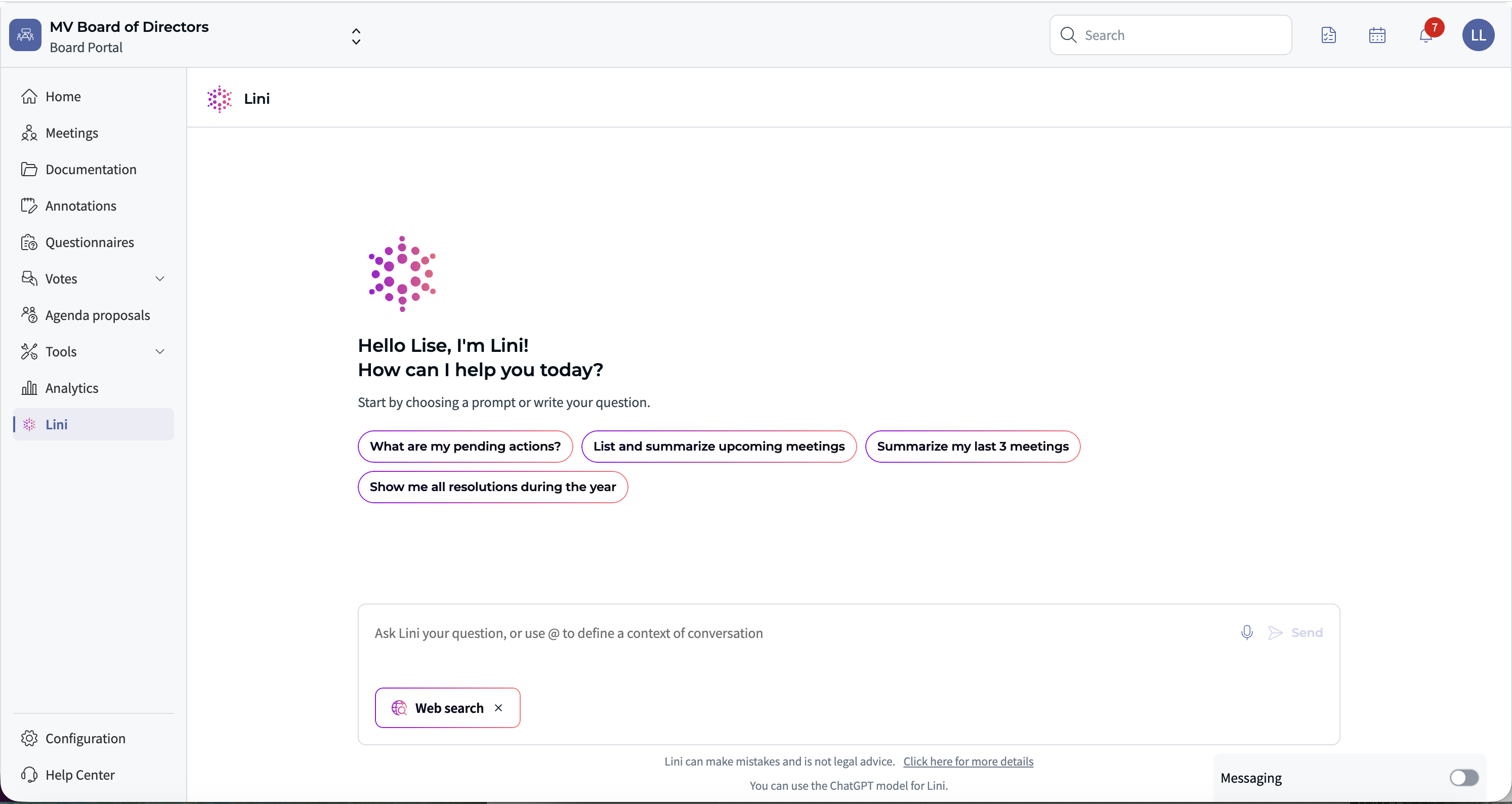
How to Deactivate Web Search
- Click the [X] in the Web Search container inside the input field.
- Lini then answers only from your Board Portal context again.
What the Result Looks Like
A Lini Web Search answer has the following structure:
- Top of the message – the list of "attached" website links, each with the site favicon, its name, a short page name, and a reference number (1, 2, 3…).
- Body of the message – the answer text, with inline reference numbers (1, 2, 3…) pointing to the sources above.
Viewing the Original Source
- Each reference includes a [See source] button.
- Clicking it opens a short website preview with the related excerpt, so you can verify the information at its source.
⚖️ This makes answers verifiable and helps reduce hallucinations.
ℹ️ Note – availability
Web Search can be enabled or disabled by your organization. Some companies do not allow web access from internal tools, so this option may not appear in your environment. If you don't see the Web Search tool, contact your administrator.
✨ Tips & Best Practices
- Use full-screen for complex queries and long document summaries
- Keep questions clear and specific for better AI responses
- Ideal for board meeting preparation
- Toggle between full-screen and compact mode at any time without losing conversation history
⚠️ Limitations & Known Constraints
- Board Portal only (for now): Not yet available on Legal Entity Management — rollout is in progress
- Always cross-check critical AI-generated information with official documents
- Conversation persistence may vary depending on your organization's configuration
- Best experienced on desktop/laptop screens
- Requires a stable internet connection
❓ Frequently Asked Questions
Is full-screen mode available on Legal Entity Management?
Not yet. It is currently available only on Board Portal. The LEM rollout is in progress — stay tuned.
Do I need to activate full-screen mode manually?
No. It is automatically available to all Board Portal users — just open Lini and click the expand icon.
Does full-screen mode change how Lini works?
No. It is purely a visual enhancement. Lini's capabilities remain exactly the same.
Can I switch between modes during a conversation?
Yes — without losing your conversation history.
Who can I contact if Lini is not available for my account?
Contact your internal DiliTrust administrator or DiliTrust Support.
Was this article helpful?
That’s Great!
Thank you for your feedback
Sorry! We couldn't be helpful
Thank you for your feedback
Feedback sent
We appreciate your effort and will try to fix the article